
New User Sign-up#
Step 2: Sign up for the Collaboratory#
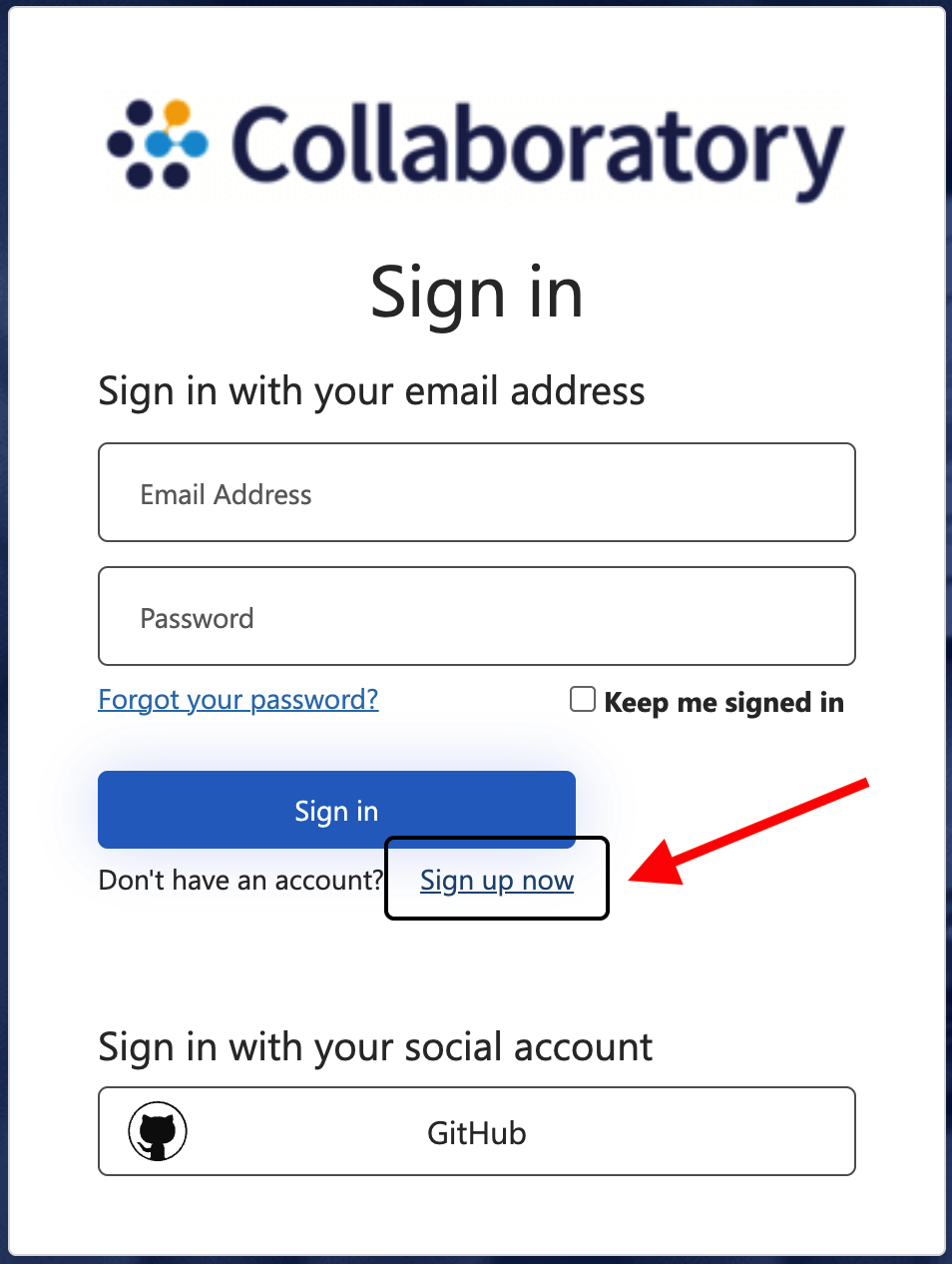
After entering your email address and password for your account on the sign-in form, go to Sign up now.
Step 3: Complete the form#
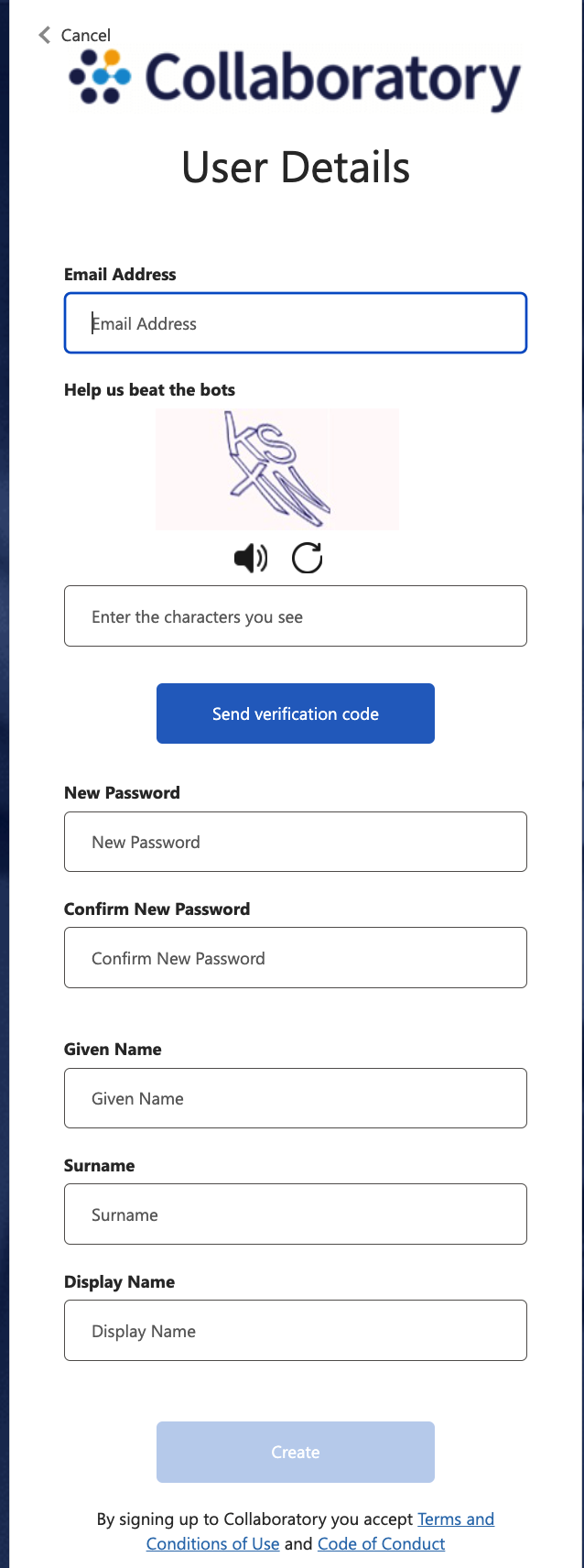
Enter in all the requested information and then select the Create button.
Set up MFA (Multi-factor authentication)#
Attention
For security reasons, users are required to set up MFA.
Note: 2FA (Two-factor authentication) can also be referred to as MFA (Multi-factor Authentication).
After the successful submission of all the requested information on the sign-up page, you will need to provide a code which you can obtain from an Authenticator app or via email. On-screen instructions are shown to guide you through the activation process to obtain a code from an Authenticator app or to receive a one-time code by email.
Step 4: Select your preferred Multi-factor Authentication method#
After you sign up, you will be given the choice for your preferred authentication method.
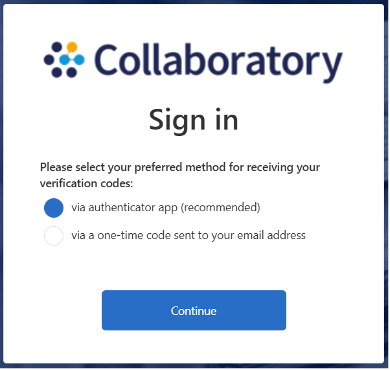
Step 4a: Via Authenticator app (recommended)#
Note
If you opt for the Authenticator app, you can choose from a number of Authenticator apps. Two popular choices are Google Authenticator or Microsoft Authenticator mobile app. Other options include: Duo, Bitwarden, etc. If you do not have it installed on your phone, you must do that first.
After selecting via Authenticator app you will see a window with a QR code.
Log into your Authenticator App, and then click button to add new account by scanning the QR code displayed on the screen. This links your mobile app to your Collaboratory account.
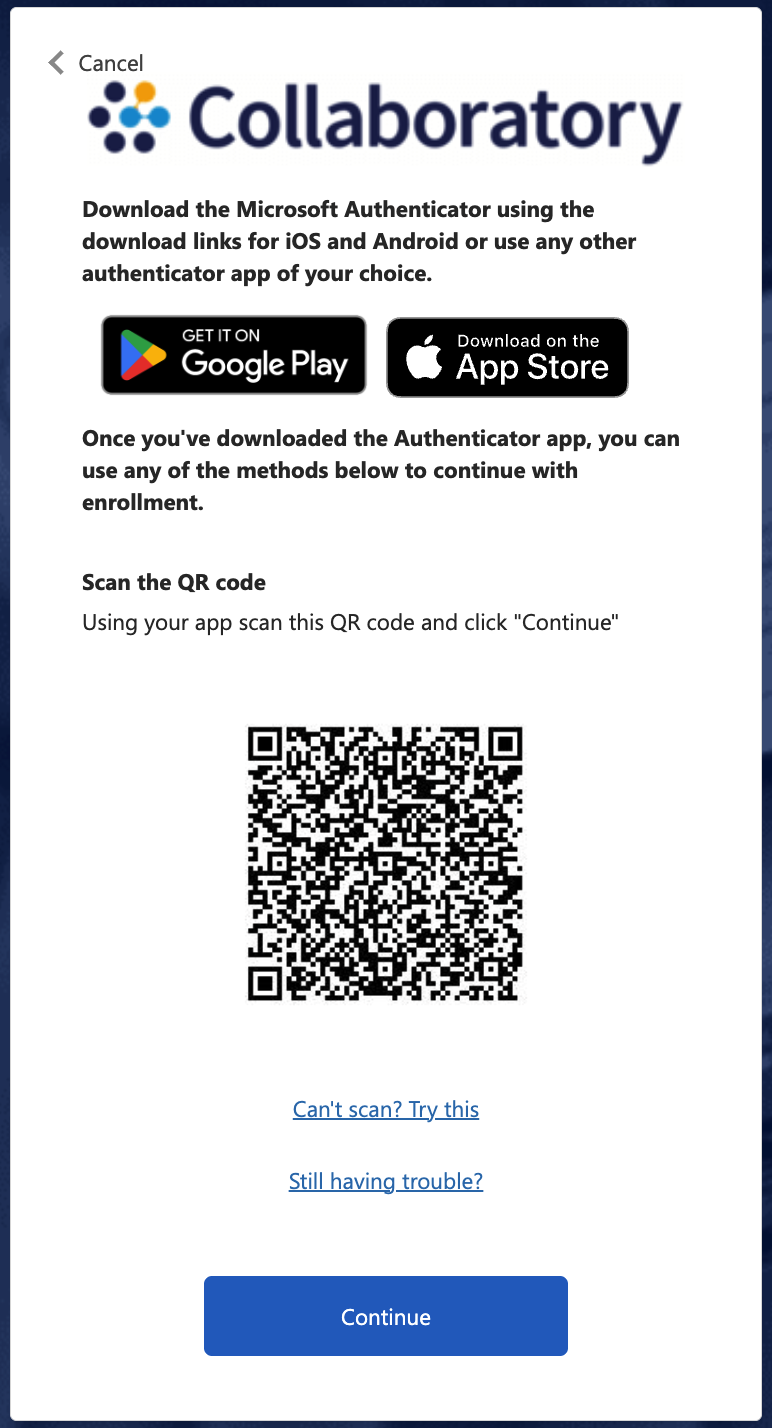
Log into your Authenticator App, and then click button to add new account by scanning the QR code displayed on the screen. This links your mobile app to your Collaboratory account.
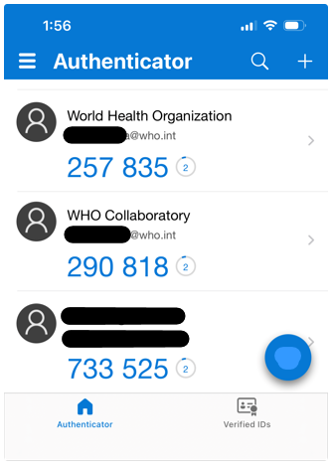
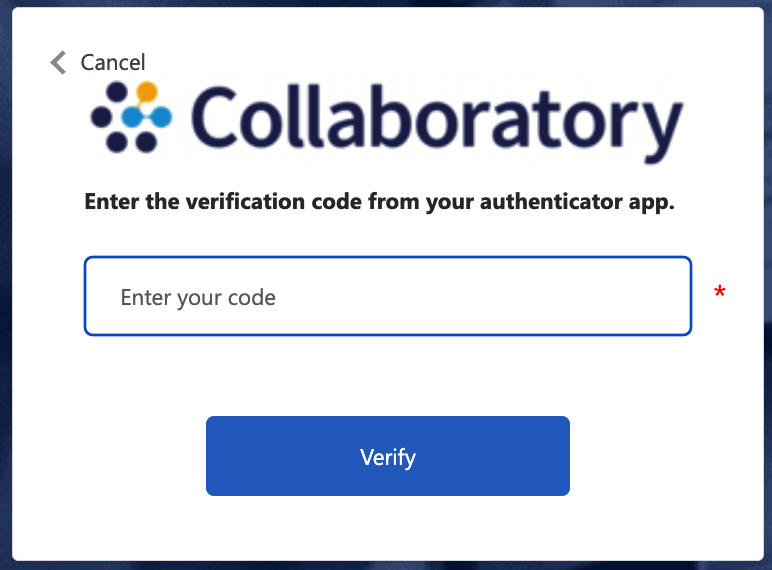
Step 4b: Enter Verification Code from Authenticator app#
Type in the 6-digit code generated by your Authenticator app into the Collaboratory verification fields.
Note: this code expires in less than 10 seconds.
Step 4c: Request a one-time Code sent to your email address#
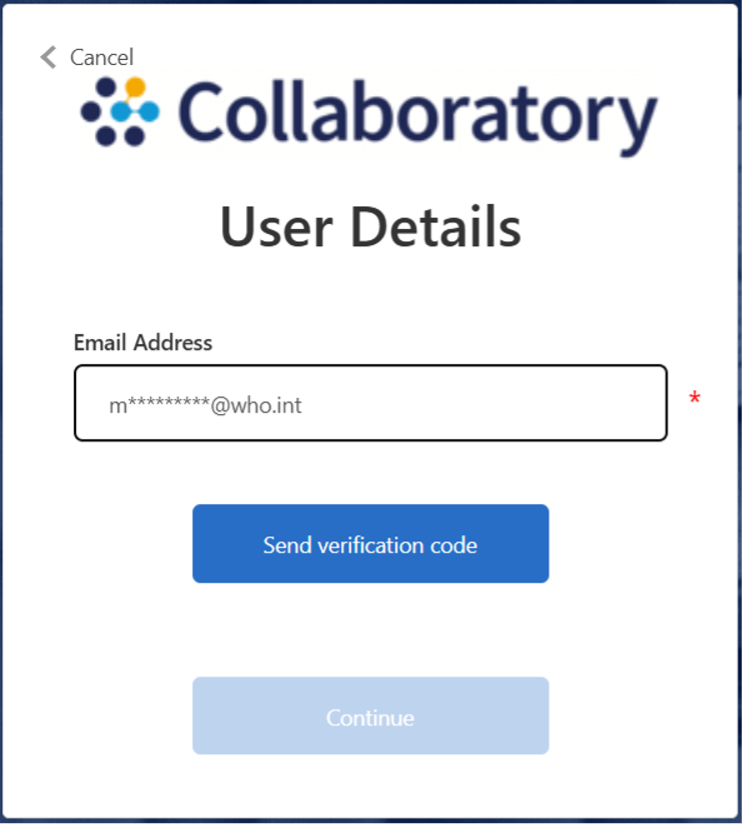
After selecting via a one-time code sent to your email address, you will be prompted to send a verification code to the email address associated with your new account.
Note: if you do not receive an email within 1 – 2 minutes, check your spam or junk folder. If you have not received an email after several minutes, you can request a code to be resent.
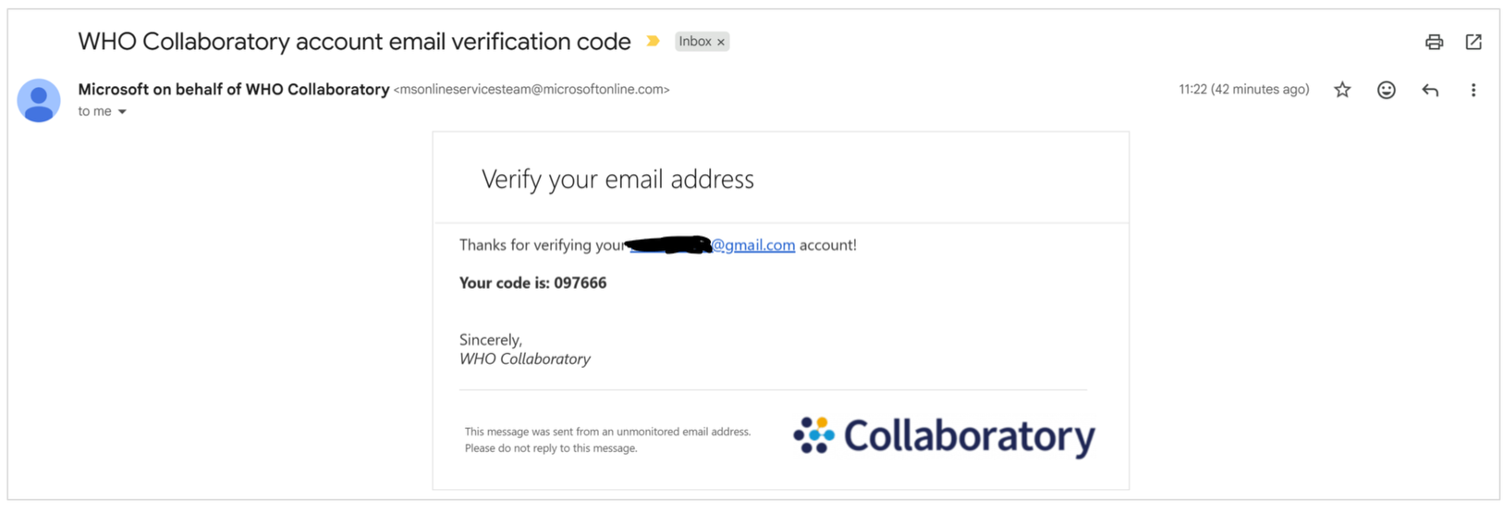
Step 4d: Enter Verification code received via email#
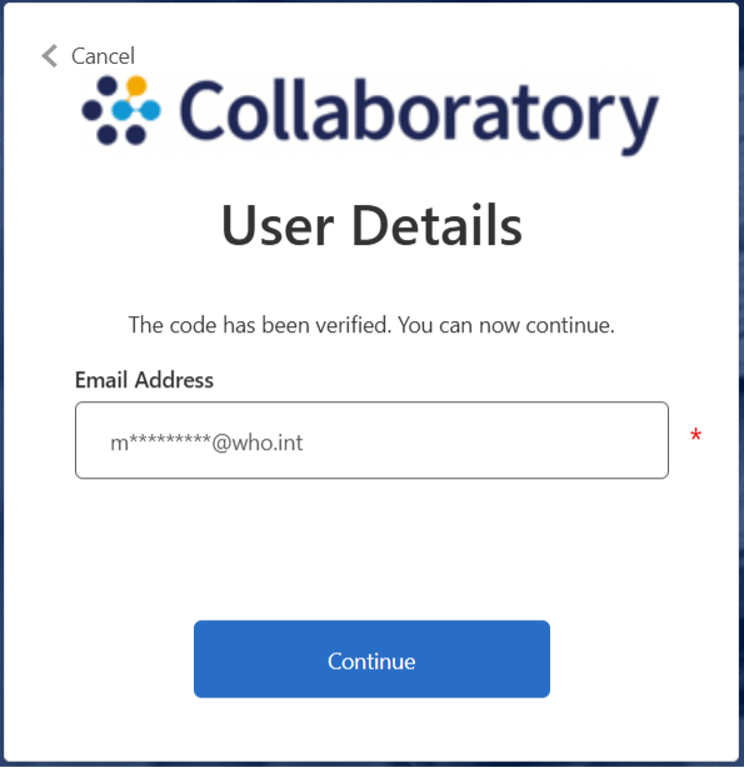
Type the 6-digit code sent to you by email into the Collaboratory verification code field. You will receive confirmation of successful verification.
Note: this is a one-time code, it will expire after use, so a new code must be generated for future sign-ins.

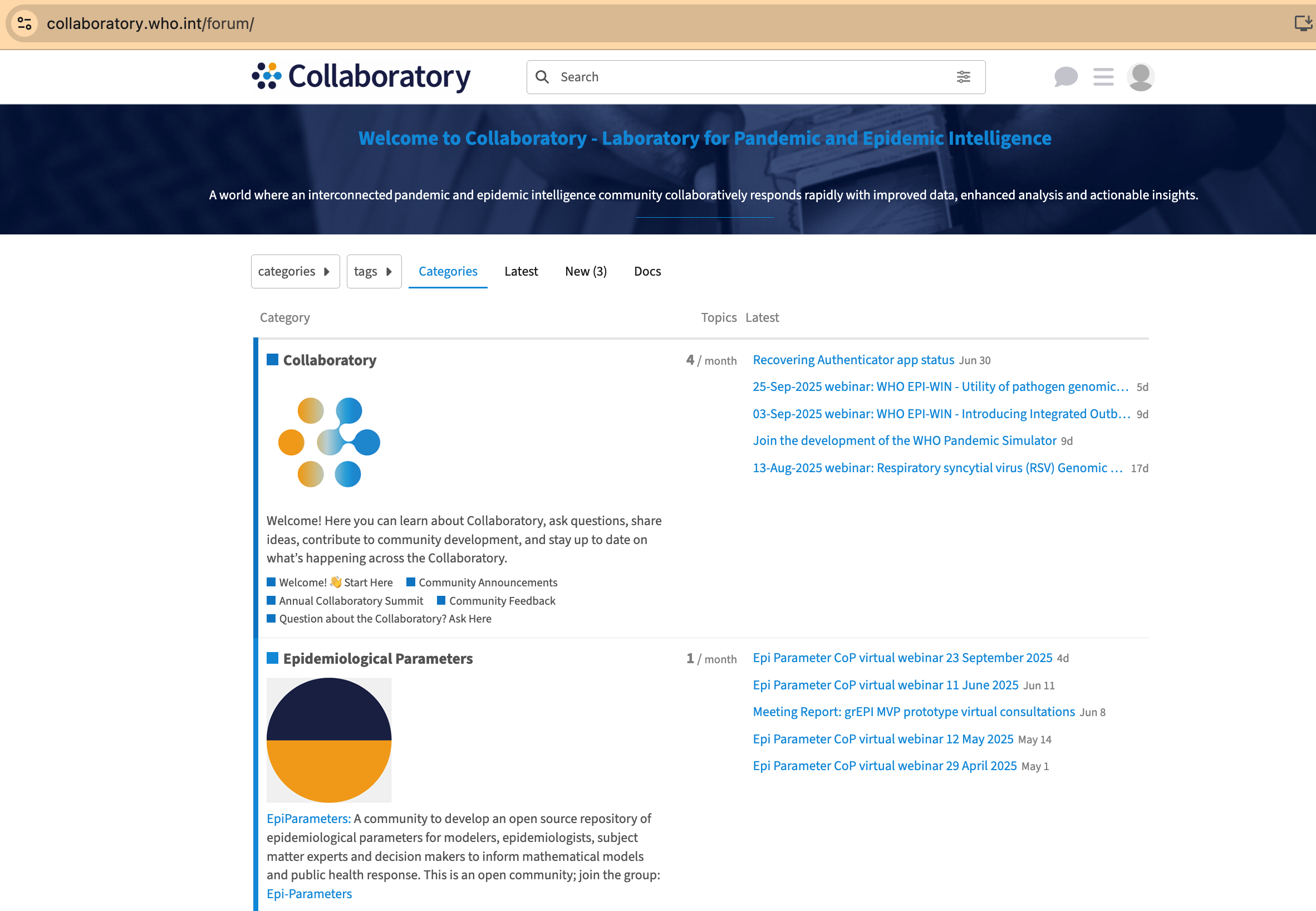
Step 5: Collaboratory home page#
After successfully creating an account and logging in, you will be redirected to the Collaboratory URL you intended to access.
Help#
Please Contact Us if you experience any difficulties logging into Collaboratory.